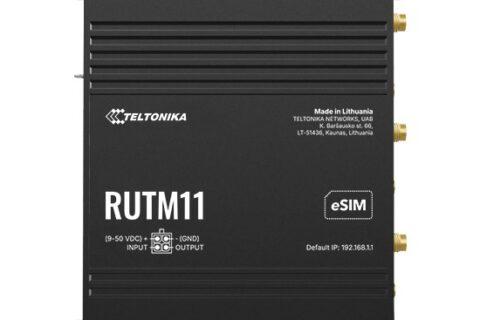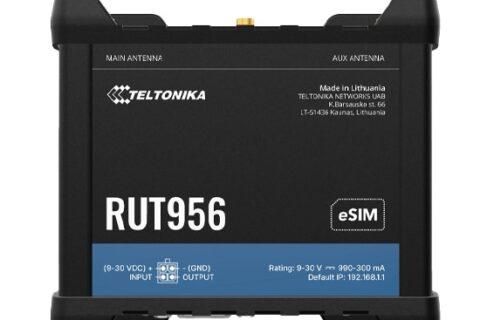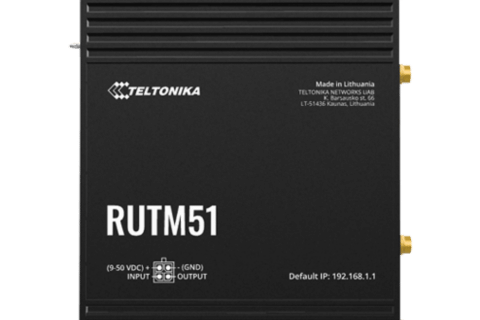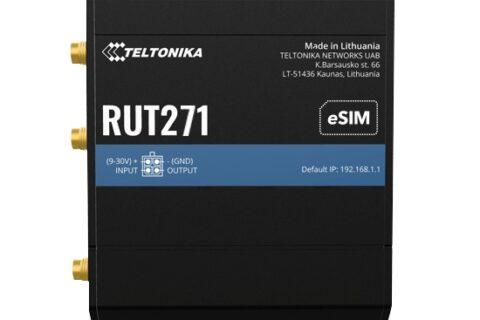
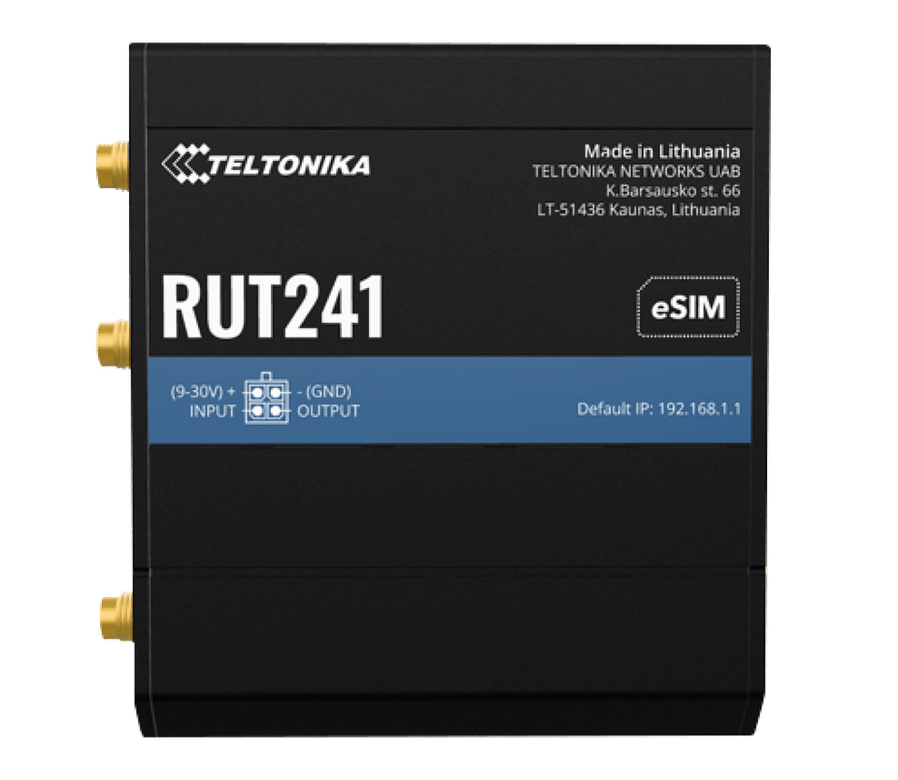
eSIM is now built into many Teltonika routers. Instead of posting a SIM card out to a site, you download your carrier’s SIM profile straight onto the router, and you can switch carriers later without anyone touching it. This guide explains how eSIM works on Teltonika routers, the different ways to load a profile (on site, through RMS and even by SMS), how many profiles you can store, and the catches to watch for with Australian carriers.
What is an eSIM?
An eSIM is a SIM chip soldered inside the router. On its own it has no mobile plan. You add one by downloading a profile from your carrier, which does the same job as a physical SIM card. Teltonika routers use the same consumer eSIM standard (GSMA SGP.22) as phones and tablets, so they work with the eSIM plans Australian carriers already sell, and Teltonika has added remote management on top through RMS.
On Teltonika eSIM routers you still get a physical SIM slot too, so you can run a normal SIM and an eSIM side by side and fail over between them.
How many eSIM profiles can a router hold?
- Storage: Teltonika eSIM routers can store several profiles. The RUT241 eSIM, for example, holds up to 7 eSIM profiles plus its physical SIM. Check the datasheet for other models.
- Active: only one eSIM profile is in use at a time on each mobile modem. The others sit ready, and you switch between them when you need to.
- Failover: the physical SIM and the eSIM count as separate SIMs, so the router’s SIM switching rules (no signal, data limit, roaming, connection failure and so on) can move between them automatically.
What you need before you start
- An eSIM plan with an activation code. When you order, ask your carrier for the eSIM QR code or activation code (it looks like
LPA:1$...). Some carriers only activate eSIMs through their own phone app; that won’t work for a router, so make sure you can get the code. If the carrier gives you a confirmation code as well, keep it handy. - Up-to-date firmware. eSIM features keep improving, so update RutOS first.
- The eSIM set as the default SIM. In the router, go to Network → Mobile → General and set eSIM as the default SIM.
- An internet connection to download the profile. This is the one that catches people out. The router has to reach the carrier’s server to download the profile, and it can’t do that over the eSIM it’s trying to install. On a single-modem router it also can’t use the physical SIM at the same time. Use one of these instead:
- An Ethernet internet connection plugged into the WAN port (NBN, Starlink, office network).
- The router’s Wi-Fi connected to a hotspot (Wi-Fi WAN).
- The Teltonika RutOS app on your phone, which can download the profile to the router using your phone’s mobile data.
- The eSIM Bootstrap profile on newer routers and firmware (see below).
Method 1: Add an eSIM on site (WebUI)
- Log in to the router and go to Network → Mobile → eSIM (switch to Advanced mode if you can’t see it).
- Click to add a new profile. Give it a name (for example, “Telstra data”).
- Paste the activation code, or upload a photo or screenshot of the QR code.
- Click Download and wait. It can take a minute or two, and the mobile antennas should be connected.
- Once it’s downloaded, select the profile to make it active, then check the mobile status page shows the carrier and an IP address.
Method 2: Use the RutOS app on your phone
Handy for installers. Connect your phone to the router’s Wi-Fi, open the Teltonika RutOS app, choose Add eSIM, then scan the carrier’s QR code or type in the activation details. The app uses your phone’s mobile data to fetch the profile, so the router doesn’t need its own internet connection. Stay in the app until it finishes.
Method 3: Add or switch eSIMs remotely with RMS
Teltonika RMS is the easiest way to manage eSIMs on routers you can’t get to. The router must be online in RMS with an active RMS licence; see our RMS guide.
- In RMS, go to Management → Devices and tick the router (or several routers).
- Open the actions menu, then Configuration → eSIM configuration.
- For one router, add a profile manually: enter a name and the activation code, then send it to the device.
- For a fleet, use From file: download the example spreadsheet, fill in each router’s serial number, profile name, activation code (plus modem ID and confirmation code if needed), upload it and apply.
- Check the action status window to confirm it worked.
From the router’s eSIM tab in RMS you can also switch the active profile, rename profiles, set the eSIM as the primary SIM and delete old profiles. That makes changing carriers on a remote site a few clicks rather than a road trip.
eSIM Bootstrap: setting up a router with no internet
Newer Teltonika eSIM routers come with a small built-in Bootstrap profile (rolling out across the range since late 2025). It gives the router about 10 MB of data, enough to reach RMS and the carrier’s server and download your real profile, even if there’s no other internet on site. It only allows RMS and profile-download traffic, and once your real profile is installed the Bootstrap profile removes itself.
In practice: add the router to RMS, queue the eSIM profile in RMS, then power the router on at site. It connects using Bootstrap and downloads your profile automatically, which can take up to an hour. If someone is on site with the WebUI, it’s quicker; download the full profile within about 15 minutes of Bootstrap activating.
Method 4: Manage eSIMs by SMS
Teltonika routers can also be controlled by text message through Services → Mobile Utilities → SMS Utilities. Recent firmware includes three eSIM commands:
esim_list– the router replies with the eSIM profiles it holds.esim_changefollowed by the profile’s ICCID – switches the active eSIM profile.esim_installfollowed by the activation code – downloads and installs a new profile.
A few notes: the router needs a working SIM to receive the SMS, the install command still needs an internet connection to download the profile, and depending on your SMS Utilities security settings you may need to include the router’s password or serial number in the message. Check the rule is enabled before you rely on it.
Tips and gotchas
- Don’t delete a profile you might need again. Deleting an eSIM profile can’t be undone, and some carriers won’t let you reuse the same activation code. Disable or switch away instead, and ask the carrier for a new code if you do need to reinstall.
- Get the right kind of plan. Make sure the plan is meant for data in a router or modem and allows the data you need. Some phone plans have conditions on use in other devices.
- Keep a physical SIM as backup on important sites. A second carrier on the physical SIM gives you failover and a way back in if an eSIM change goes wrong.
- Label your profiles clearly (carrier and plan) so you can tell them apart when switching remotely.
- Antennas matter. A weak signal can make profile downloads fail. Make sure the mobile antennas are connected and well placed.
Which Teltonika routers have eSIM?
eSIM is standard on many newer models, and some models come in both standard and eSIM versions. The eSIM models we stock include:
- 4G: RUT241 eSIM, RUT200 eSIM, RUT956 eSIM, RUT951 PoE+ eSIM
- 5G: RUTM20, RUTM30, RUTM54, RUTM52, RUTM55, RUTX50 eSIM, RUTC50, OTD500 outdoor
Look for “eSIM” in the product name. Not sure which model suits you? See Which Teltonika router do I need?
Need a hand?
Tell us how many routers you’re deploying, which carriers you’re considering and whether you’ll manage them remotely, and we’ll help you plan the eSIM setup. Call 1300 803 755 or email sales@ltegear.com.au.